
Changing Categories and Titles
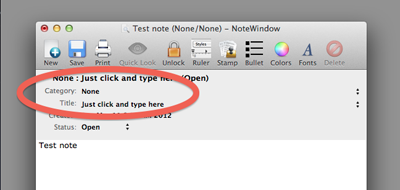
Categories and titles are entered right in the note header. You're free to enter a new category and/or title whenever you want whether it already exists or not. proNotes will automatically index if for you.
Changing a category and/or title
There are two ways to change the category and title depending on how many you want to change. If you want to change the category or title for a particular note, just click on the category or title in the header. You can either type some text or select an existing one from the drop-down menu. proNotes has a "type-ahead" feature to make it easy for you to use the same category and/or title. You can also select an existing category from the drop-down menu.
Note Header |
|---|
 |
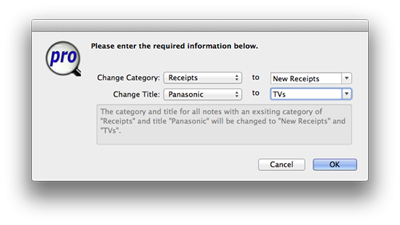
If you what to change the category and/or title for a bunch of notes you can use "Change Categories & Titles..." from the Edit menu. This allows you to change the category and/or title for all notes with that category and/or title to something different. I designed the dialog box to give you a preview of the changes. After you press "OK" you get one more chance to be absolutely sure you want to make the change. The example below will change all notes with the category “Receipts” and the title “Panasonic” to the category “New Receipts” and the title “TVs”.
Change Categories & Titles Dialog Box |
|---|
 |
Things to Consider
Once you make the change you can't undo so be sure it's what you want to do.